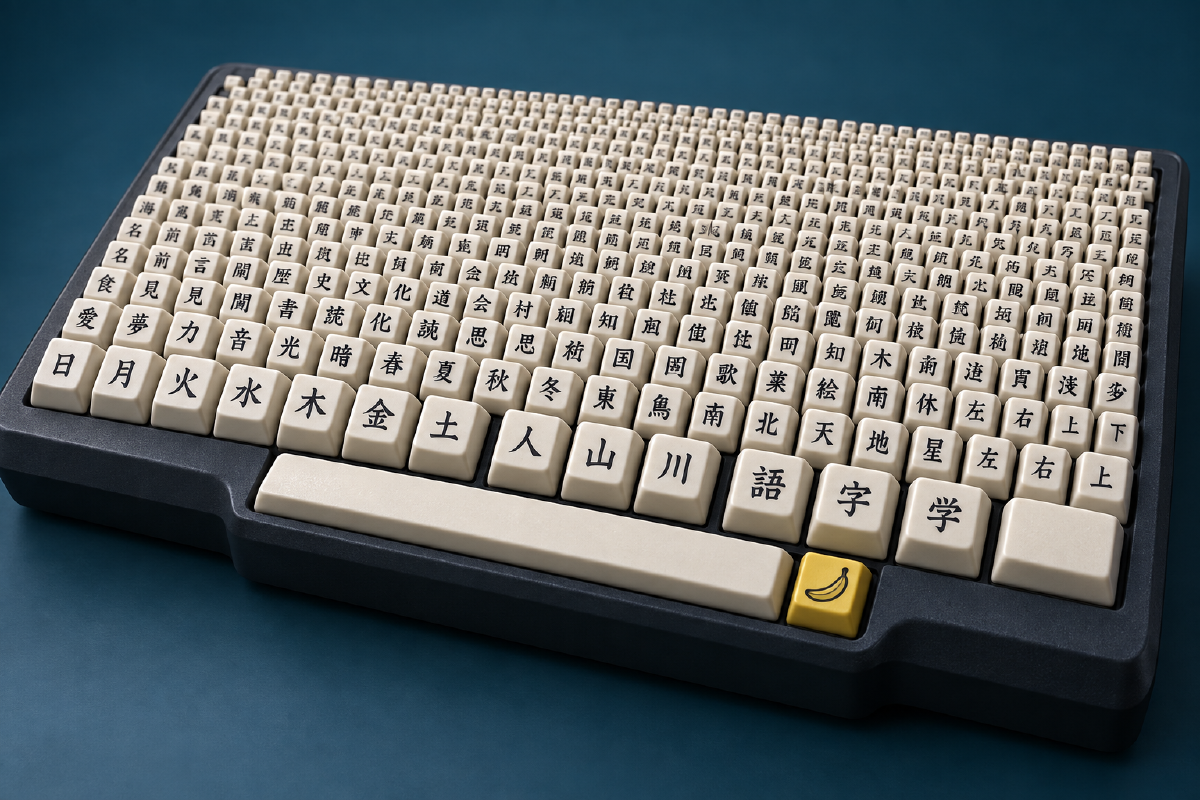
There isn’t a key for every kanji. You type how a word sounds, and software helps you choose how to write it.
For example, type nihongo on an ordinary keyboard. A Japanese input method turns those letters into にほんご. Convert that reading and choose 日本語 — “Japanese language.” Seven letters, three kanji, no enormous keyboard.
Try it here#
Keep your keyboard in English / Latin-letter mode for this playground. In See how it works, follow the arrows from the letters you type to kana and possible kanji. The choices appear as you go. Click one, or press Space to select a choice and Enter to confirm it.
Switch to Try an IME to type straight into the writing area: your letters become kana, with a candidate list underneath. Confirm a word, then keep typing the next one.
ONE KEYBOARD. THOUSANDS OF CHARACTERS.
The playground loads 1,500 common-word dictionary entries, covering more than a thousand distinct kanji, plus the guide’s examples. A word can contain several kanji, and the same kanji can appear in many words: the dictionary connects readings to words, not keys to individual characters. Start with ao and look for completions such as 青い (aoi, blue), or try hashi to see why you need a choice.
This is still a teaching tool: it matches words and suggests completions, without a full IME’s sentence analysis or conjugation engine. If a word isn’t in the subset, you can keep the kana. All conversion happens in your browser; your typing isn’t sent to a service.
What happens between the keys and the kanji?#
The software is called an IME, short for input method editor. With romaji input, it first reads Latin-letter sequences as Japanese sounds: ka becomes か, shi becomes し, and kyo becomes きょ.
Then comes conversion. A reading can have several written forms. Type hashi and you might mean 橋 (bridge), 箸 (chopsticks), or 端 (edge). The letters alone cannot tell the computer which one you intend. That’s why it offers candidates for you to choose from.
On a typical desktop IME, Space converts the reading or moves through candidates, and Enter confirms your choice. Microsoft’s Japanese IME guide documents this flow and the candidate controls.
You don’t have to convert every word. Some words stay in hiragana; others use katakana, such as コーヒー (kōhī, coffee). In a real IME, you can type a longer phrase and adjust its conversion. You still check the result: a plausible kanji isn’t always the right kanji.
A few useful typing tricks#
| To write | Type | What’s happening |
|---|---|---|
| し | shi or si | Common alternative spellings both work in this demo. |
| きょ | kyo | The small ょ combines with き. |
| がっこう | gakkou | A doubled consonant makes the small っ. |
| かんじ | kanji | Before a consonant such as j, n becomes ん. |
| かんい | kan'i | An apostrophe separates ん from the following vowel; kani gives かに. |
| ほん | honn | Double n finishes ん explicitly; this demo also finishes a trailing n when you convert. |
| コーヒー | ko-hi- | A hyphen gives the long-vowel mark; choose the katakana candidate. |
Spelling follows the kana. 東京 is とうきょう, so type toukyou, with both of those extra vowels. And the topic particle pronounced wa is written は, so type ha when you want that particle.
A handy bonus: emoji 🍌#
Conversion can be a wonderfully quick way to find an emoji, too. Type banana → ばなな and choose 🍌. Try the banana example above — no scrolling through an emoji picker!
Emoji suggestions depend on the IME and its dictionary; Apple’s Japanese input guide shows emoji among the candidate choices. Here, we’ve included the banana so you can try it in either view.
Do you need a Japanese keyboard?#
You can use the keyboard you already have. Enable a Japanese input source on your device and choose romaji input. Japanese keyboards also offer kana input, where keys enter kana directly; romaji input lets you use familiar Latin-letter keys.
On Windows, start with Microsoft’s Japanese IME instructions. On a Mac, the Japanese input settings guide explains the available modes. Mac users may see kanji appear automatically with Live Conversion enabled, so pressing Space isn’t always a separate step.
For everyday writing, use your device’s Japanese input method. This page is a place to see what it is doing and try the idea without setting anything up.
Put those keys to work#
Try Typper — 妖怪横丁, my Japanese typing game: serve food to a street full of yōkai by typing their orders. It practices romaji typing with the system IME off, just like the demo here.
For more things I’ve made, visit Related projects.